
- Video Overview
- Downloadable PDF Overview
- Using the Quick Search Bar
- Conducting Advanced Searches
- Setting Alerts
Video Overview
CQ's powerful searching and alerting functionality helps you to get the information you need, and none of the noise you don't. See the videos below for an introduction to both searching and alerting in CQ.
Downloadable PDF Overview
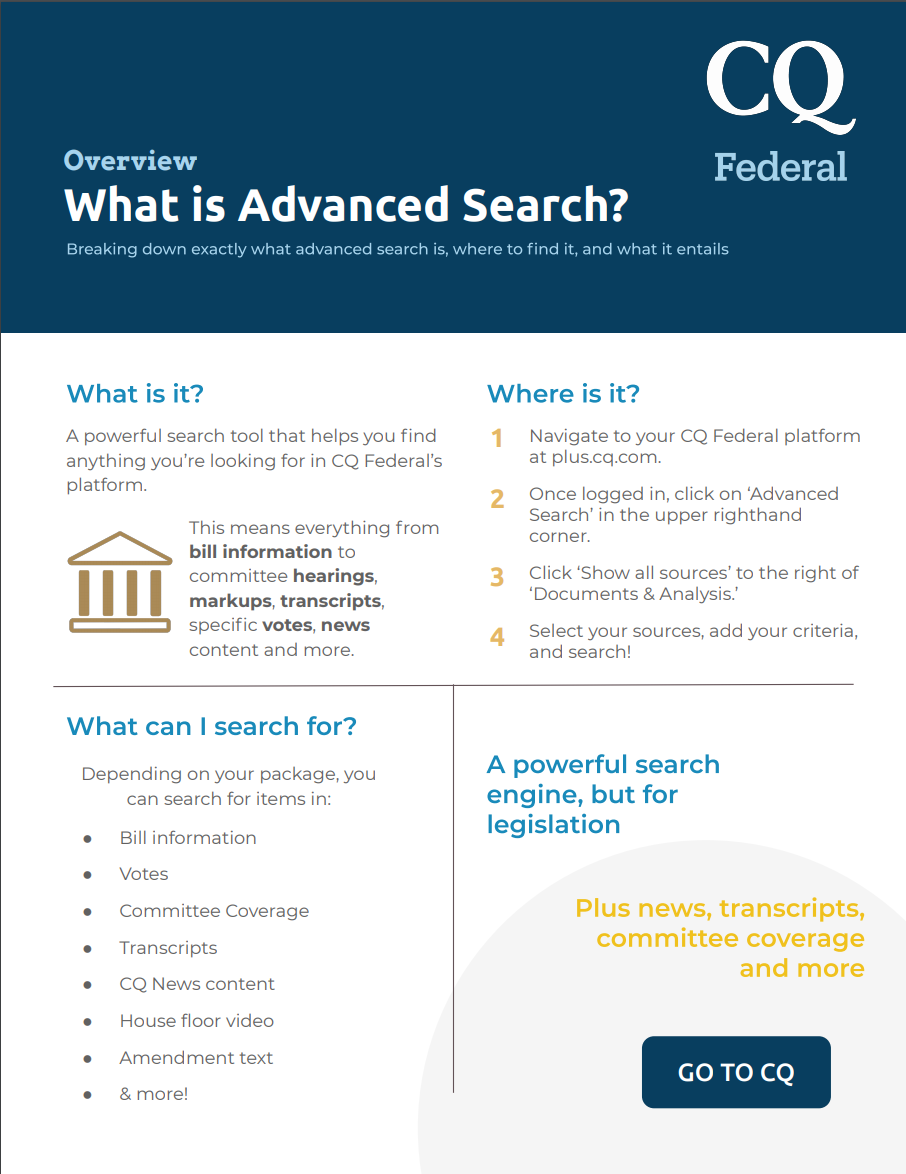
Click here to download the Searching PDF, or click the image below.
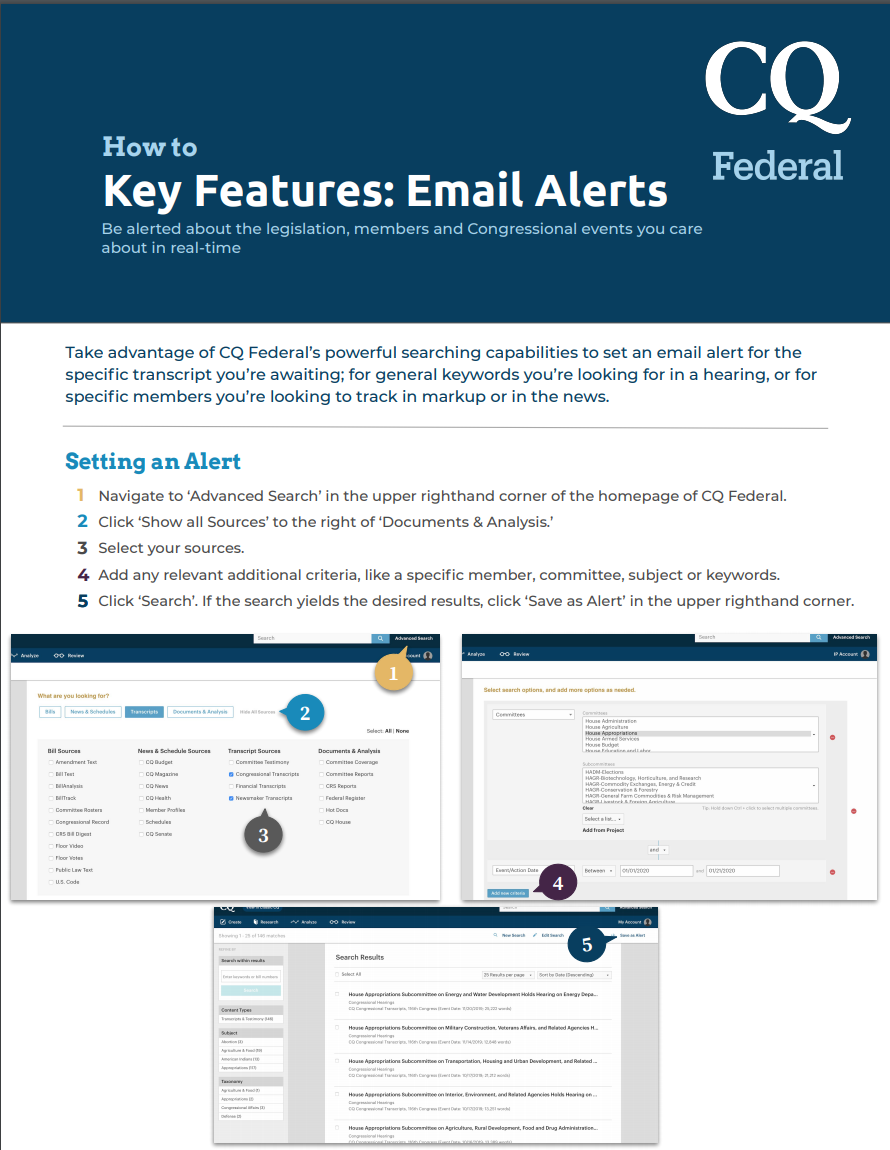
Click here to download the Alerting PDF, or click the image below.
Using the Quick-Search Bar
If you know the number of the bill or the name of the member or number of the vote you're looking for, simply type it into the search bar and make sure to pause in order to let the search auto-populate (this is much easier than clicking the magnifying glass). See below.
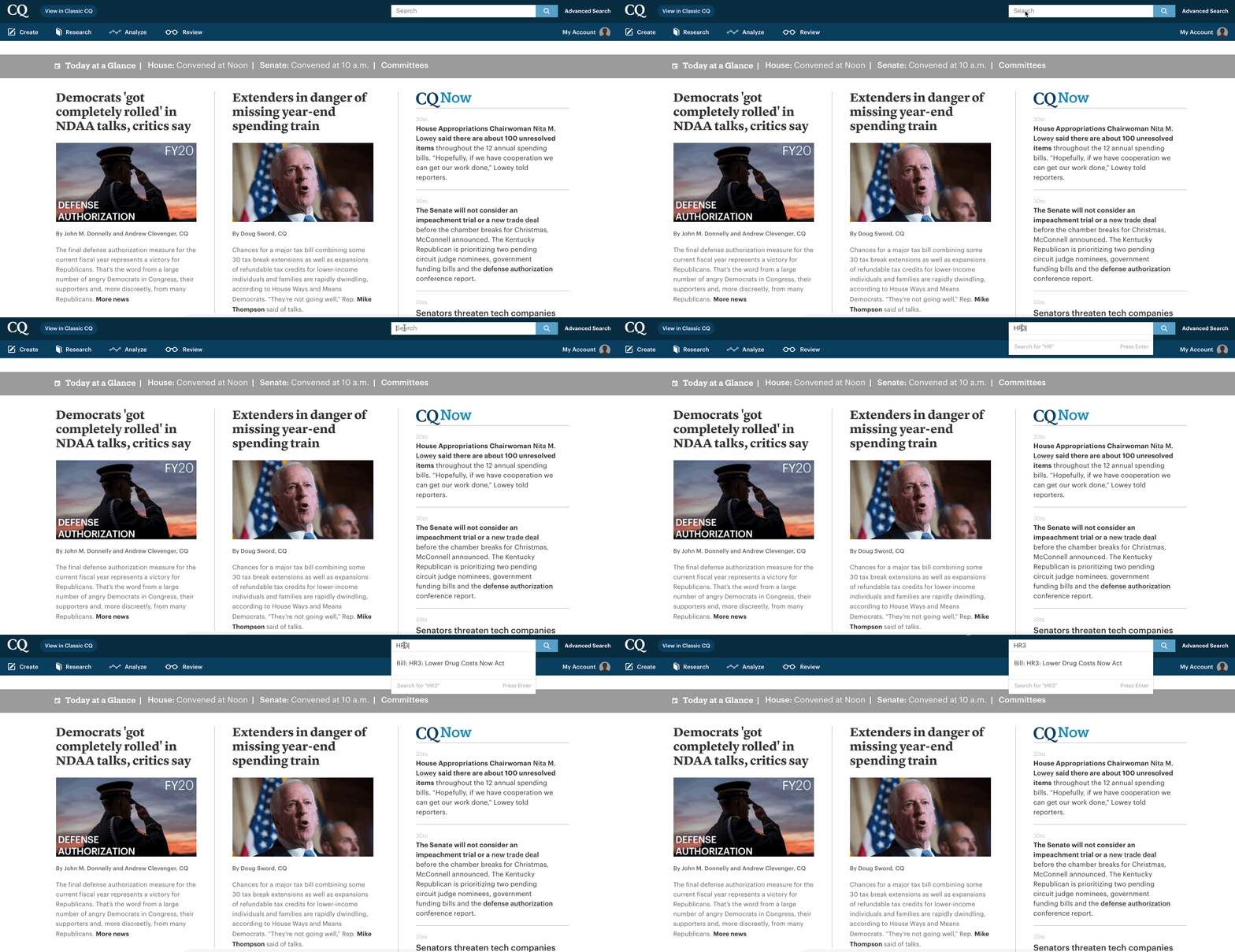
Even if you don't know the exact member name or bill or vote number, you can always search by keywords (such as the the title of the bill or any word in the bill title, etc).
Conducting Advanced Searches
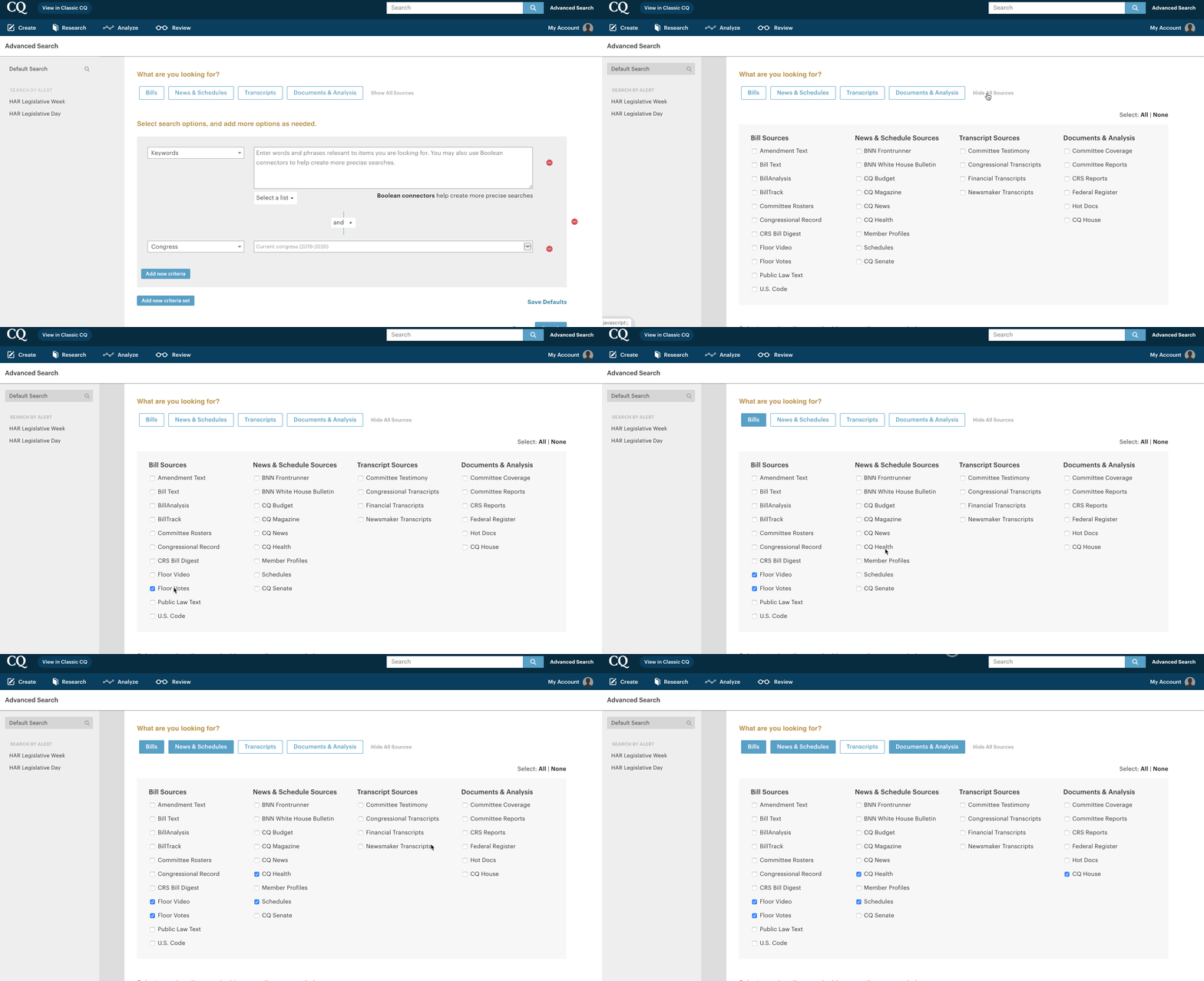
1. Click "Show All Sources" on the Advanced Search page to see the sources/data available to you for your search.
2. Select sources either by clicking one of the four large groups and thereby auto-selecting all sources listed under that group heading:
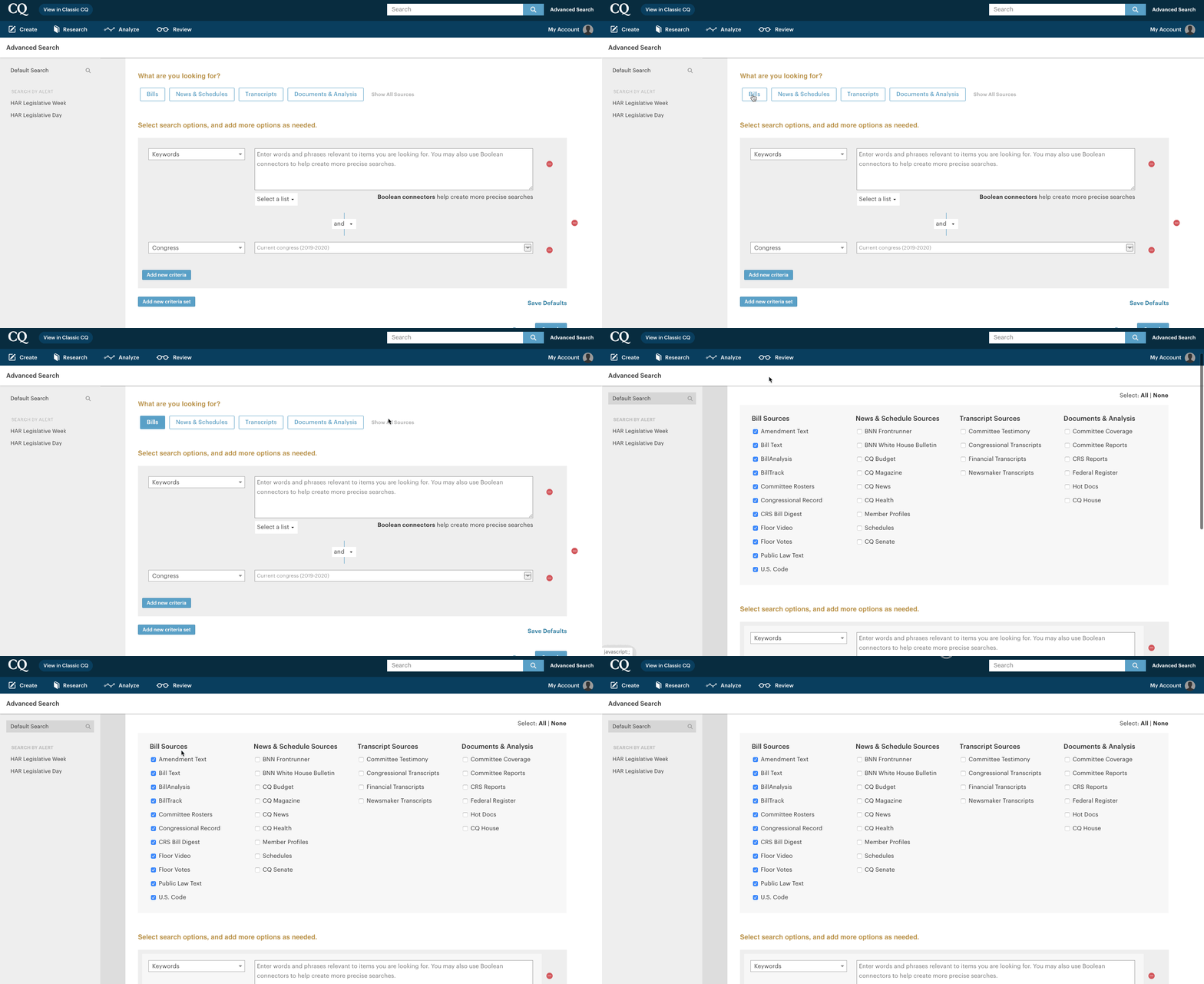
or selecting as you please by clicking the checkbox to the left of the source:
3. Choose subtopics by clicking the dropdown to the left of the 'Keyword' text box.
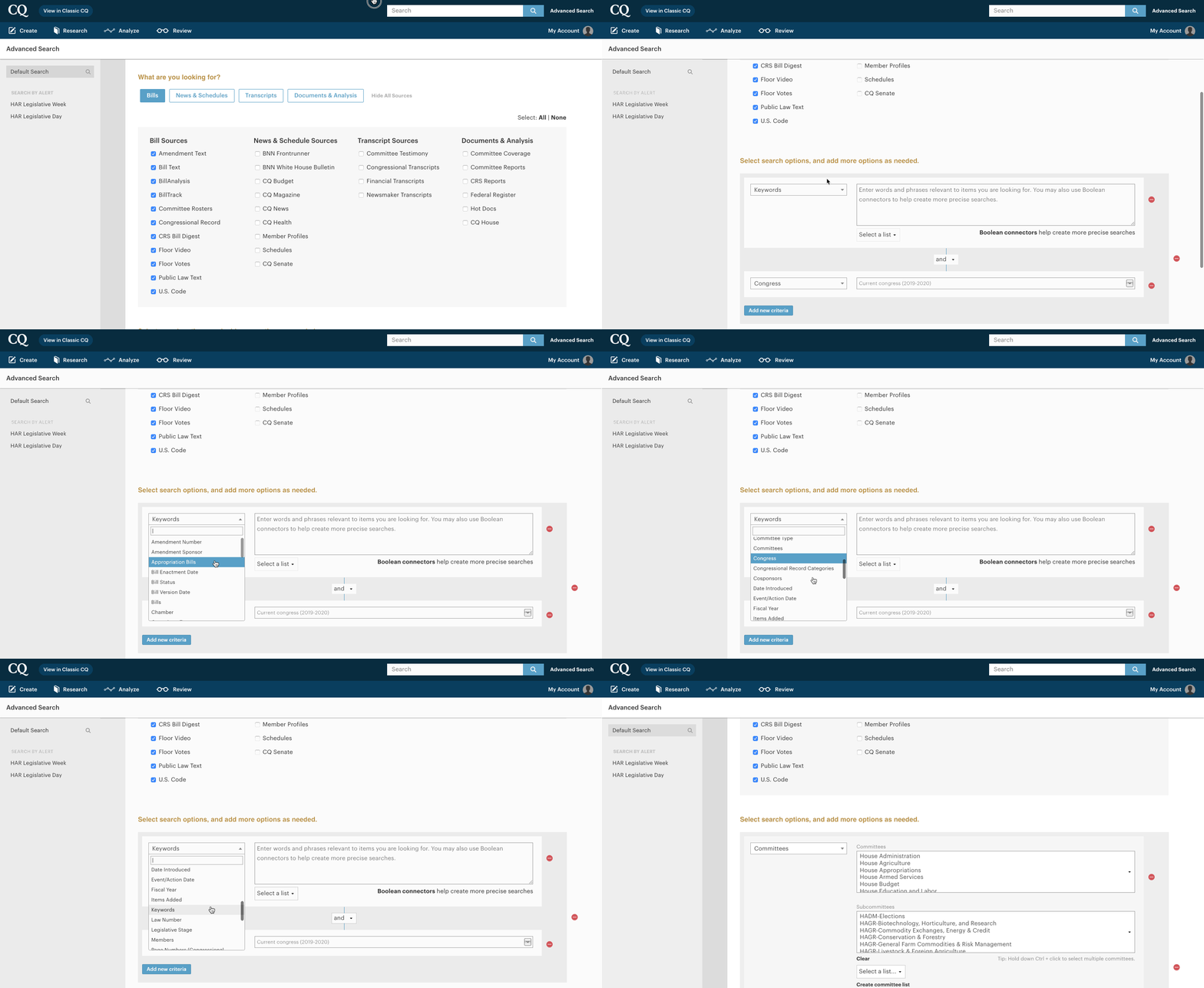
4. Select any subtopic you like, from 'Bills' to 'Committees,' 'Chamber,' 'Date Introduced,' and more.
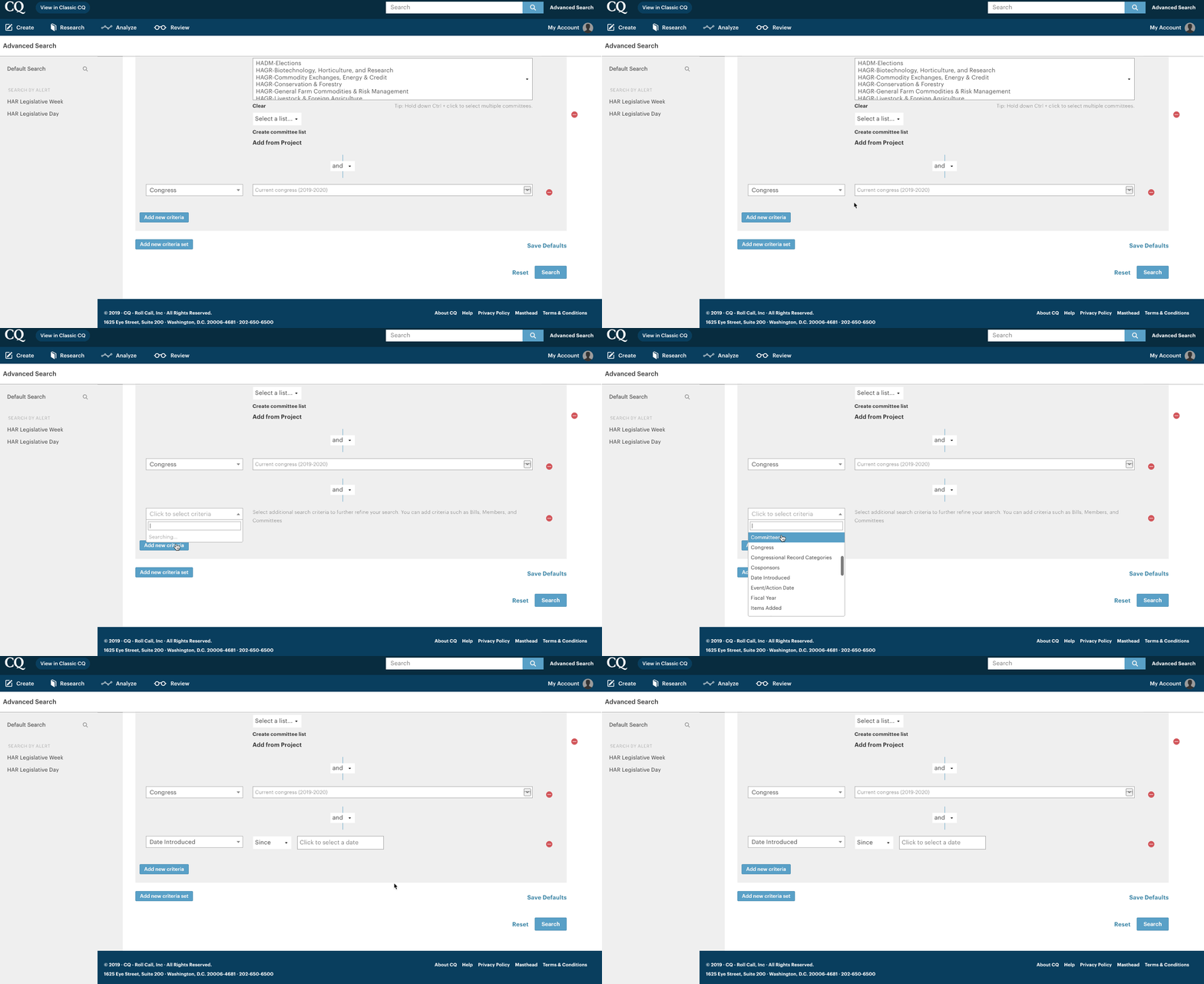
5. Feel free to layer as many subtopics as you'd like by clicking 'Add new criteria' on the bottom lefthand side.
Setting Alerts
To set an alert, create your advanced search. Once you have the results you'd like, simply:
- Head to the upper right hand corner of the results page;
- Click 'Save as Alert';
- Name the alert; set the time you'd like it to arrive, and save.
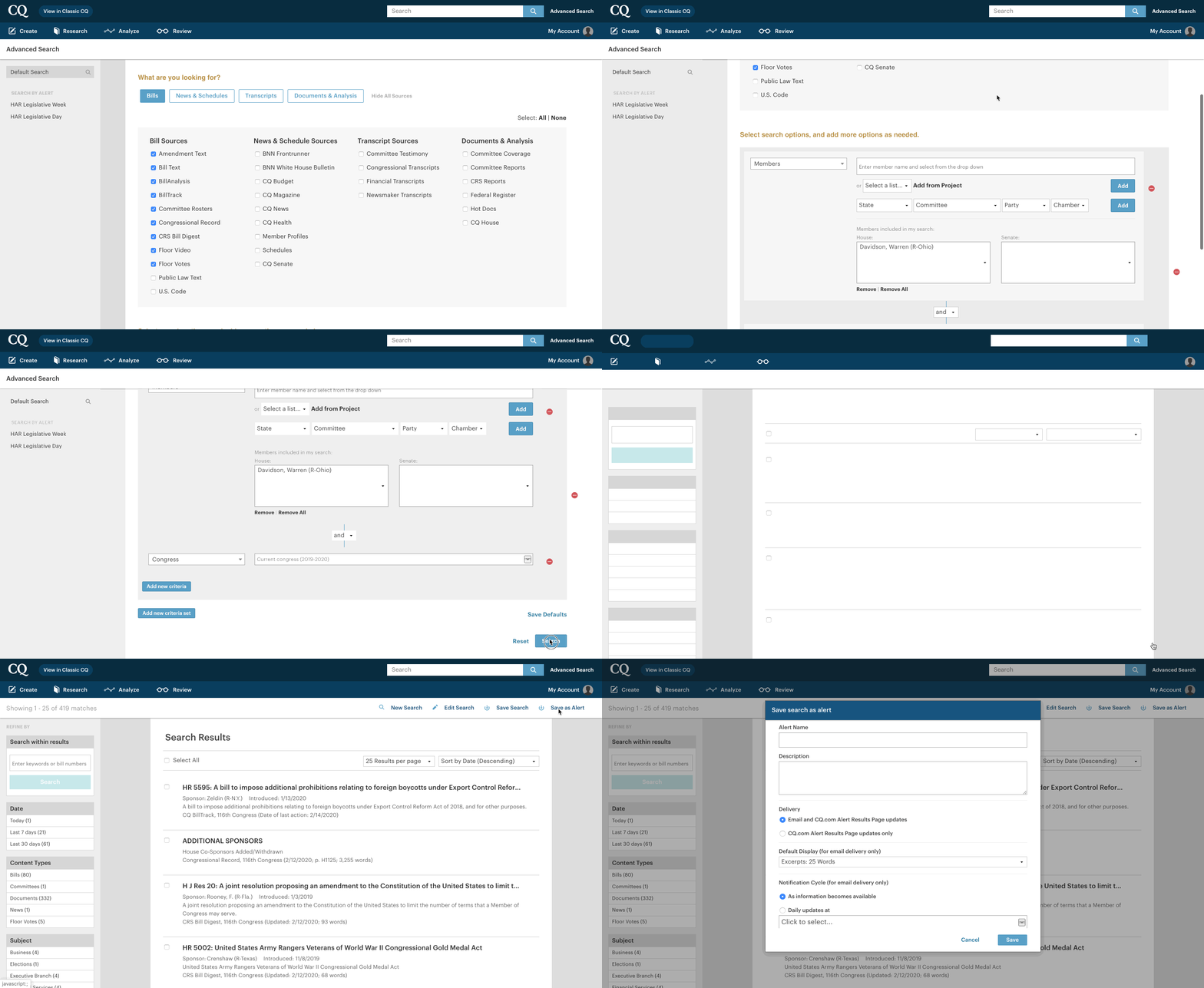
Once complete, you will begin receiving email alerts whenever there are matches (news, updates on bills, schedules, etc) based on your alert.
Comments
Please sign in to leave a comment.